Google Business Profile Verification: How to Claim Your Listing, Improve AI Mode Visibility, and Get More Local Business
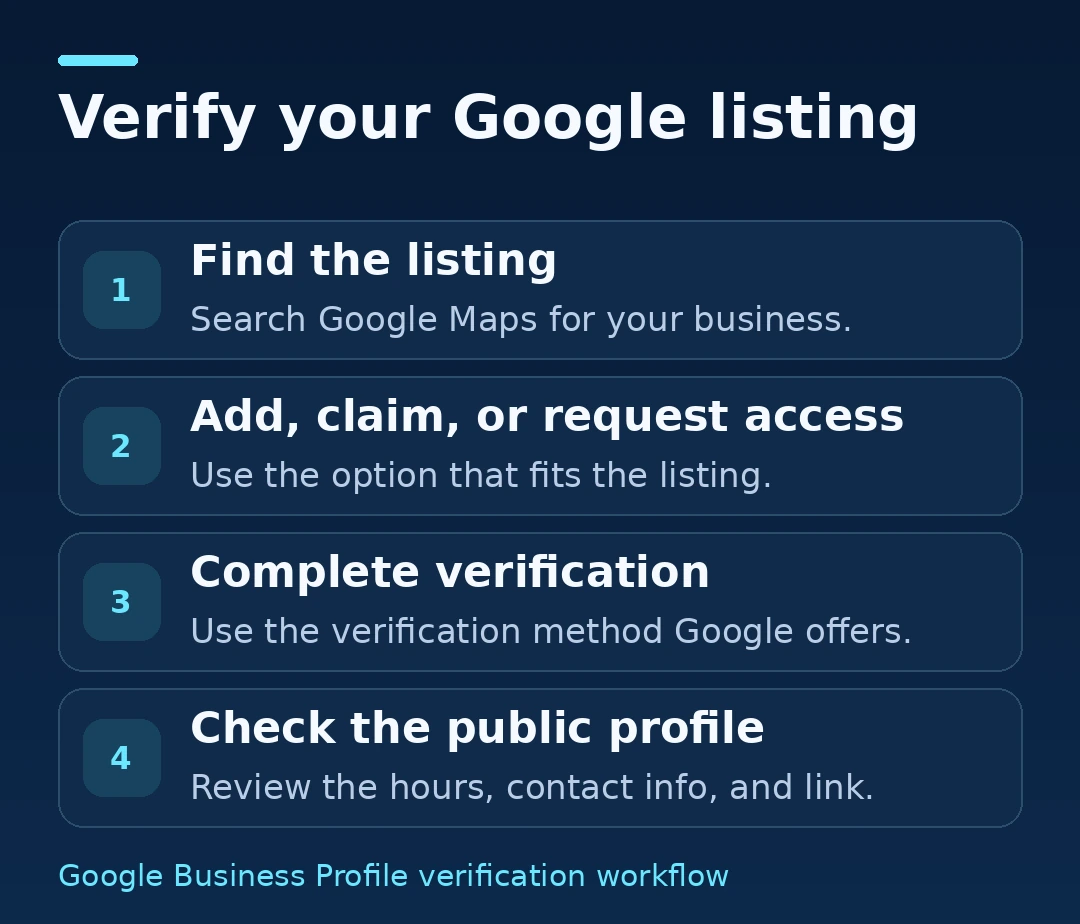
Google Business Profile verification confirms that you’re authorized to manage a business listing on Google Search and Maps. Start by searching Google Maps for your business name and city. Claim the existing profile if it’s unverified, request access if someone already manages it, or create a profile if your eligible business has no listing. Then complete the verification method Google offers for that profile.
Once verified, check what customers actually see. Can they tell what you do, whether you’re open, where you serve customers, and how to reach you? Those questions give you a better starting point for optimization than filling in every field indiscriminately. This guide walks through setup, video verification, and performance tracking. It also shows how to make business information easier to find in Google Search, Maps, and AI Mode. It also explains where Microsoft Bing Places for Business and ChatGPT Business Hub fit alongside Google.
A Google Business Profile, formerly called Google My Business, is a free listing that eligible businesses can manage on Google Search and Maps. Depending on the business, customers may see a phone number, website, hours, photos, reviews, a street address, or a service area. Someone searching for a bakery may check whether they can visit before work. Someone looking for a plumber may want to know whether the company serves their neighborhood and takes emergency calls.
Verification gives the authorized business owner or representative a way to manage that information. Google explains local rankings through relevance, distance, and prominence. These factors help explain why two nearby customers can see different results for the same query, even after a business has verified and completed its profile.
Which account manages your Google business listing?
If you search for “my Google business” to edit your hours, sign in to the Google Account that owns or manages your profile, then search for your business name. Owners sometimes call that sign-in a Google business account or Google My Business account. Your Google business listing is the public profile customers see. A Google business page or Google My Business profile is often how owners refer to that same listing.
How to create a Google Business Profile or claim an existing listing
1. Find the correct listing in Google Maps
Search for your business name and city, then check the address, phone number, and website before selecting a result. This is especially important if your business moved, changed names, has several branches, or shares a similar name with another company. If multiple results look plausible, note which ones refer to your business and which refer to another location. Starting from the right record helps preserve continuity for customers who already use the listing to call or get directions.
Sign in using an account your business can retain access to if staff or agencies change. For a business with several locations, record the owner, managers, and website link for each location. If you use an outside agency, grant the access needed for the work through Google’s profile roles and keep ownership with the business.
2. Add, claim, or request ownership of the Google Business Profile
Open the profile on Google Maps, select Claim this business, then follow the prompts to manage and verify it.
A verified listing managed by someone else
Follow Google’s ownership request process for your business type. If you know the current manager, ask them to grant the appropriate access through the profile.
Multiple profiles for the same business and location
Review Google’s guidance on duplicate profiles and ownership before taking action.
When you request ownership, Google says the current owner has three days to respond. If the request is denied, Google describes appeal options. If the owner doesn’t respond, check the request email and profile for the next step Google makes available. Keep the confirmation email so you can locate the original request if you need support.
Use the name customers see on your signage, website, and other business materials. Enter a real business address where appropriate, choose a category that describes the business, and provide the phone number and website customers should use. Put services and locations in their dedicated fields. Appending cities or promotional keywords to a business name can violate Google’s guidelines and lead to suspension.
Choose the profile setup that reflects how customers interact with the business:
Storefront. Customers visit the location. A neighborhood bakery that serves people at its shop is a straightforward example.
Service-area business. The business visits customers. A plumber who dispatches from home and receives no customers there should hide the address and enter the area served.
Hybrid business. Customers can visit the staffed location, and the business also serves customers off-site. A bike shop with a public storefront and mobile repair service is one example.
If the business operates entirely online, review Google’s eligibility criteria before creating a profile. Google generally requires eligible businesses to make in-person contact with customers during their stated hours. A rented mailbox or virtual office doesn’t establish a customer-facing business location under Google’s guidelines.
Open the profile while signed in to the account you use to manage it and follow the Get verified prompts. Google determines which methods are available and may require more than one. Depending on the profile, the options can include video recording, live video, phone or text, email, or mail.
If Google offers a phone or text code, make sure someone can receive the call or message on the number associated with the business. If Google offers mail, follow the instructions in the profile and avoid changing the business name, address, or category while the code is on the way. Keep verification codes private. Google says review can take up to five business days after you complete the steps, with rare cases taking longer.
When the profile shows that it’s verified, open the listing in Google Search and Maps as a customer would. Check the map pin, public address or service area, phone number, regular hours, website link, and any recent changes. If you’re managing a chain or franchise, check the specific branch so you can catch location links that point to the wrong page.
Google Business Profile video verification: what to show
Google asks businesses to show where they operate, what they do, and evidence that the person recording is authorized to manage the business. If your profile offers video recording, plan one continuous route that captures those three points. Google requires an unedited recording of at least 30 seconds, captured and uploaded from a mobile device through the Business Profile process. Avoid filming other people’s faces, private documents, account details, or other sensitive information.
For a storefront, start outdoors with a street sign, building number, or recognizable neighboring business, then show the permanent sign and entrance. Walk inside and demonstrate access to something customers typically can’t use, such as an employee-only area or the point-of-sale system. Frame the equipment so that payment details and customer information stay out of view.
For a service-area business, start with a location reference permitted by Google, then show work equipment or other evidence of the services you provide. A plumbing business might show its stocked van, drain equipment, and access to the vehicle or secured tool storage. A contractor working from a residential base can keep the address hidden on the public profile while following the evidence prompts for the verification recording.
For a hybrid business, plan around the evidence for the actual setup. A shop with off-site service might film its permanent exterior sign, walk through the staffed shop, then show equipment or a vehicle used for the off-site work if relevant to the requested evidence.
What to do if Google rejects the verification video
Read the feedback before recording again. If Google couldn’t confirm the location, begin with a clearer street reference and follow an uninterrupted route to the business. If the business name wasn’t clear, hold the camera steady long enough for a permanent sign to be readable. If Google couldn’t confirm management access, show a specific action you’re authorized to perform, such as unlocking a staff-only area or opening the business vehicle. If the verification option disappears or the instructions remain unclear, use the support route available in the profile or in Google’s verification help.
If the profile is suspended or disabled, review the issue and applicable policies before using the appeal process. Correct inaccurate business information and prepare relevant evidence before opening any time-limited evidence form. A replacement profile can complicate an existing ownership or policy issue.
How to optimize your Google Business Profile after verification
Start with the details that influence whether a customer chooses to call, visit, or book. Work from the business category and customer-facing information through reviews, photos, and the website. Check the public listing again when the updates appear.
Choose accurate Google Business Profile categories
Choose a primary Google Business Profile category that describes what the business is. A bakery that also sells coffee should consider whether Bakery best describes its main operation. Additional categories can cover distinct business activities when accurate. The services section is a better place to list individual offerings such as custom cakes, sourdough bread, or catering. Google may ask you to verify again after some changes, including category changes.
Complete hours, services, photos, and customer-facing details
Keep regular and special hours current. If your phone is answered around the clock but a physical location closes at 6 p.m., make the distinction clear on the website and in the customer-facing information you control. This helps customers decide whether they can walk in, book ahead, or call for urgent service.
Describe the services you actually provide. Use plain terms customers recognize, such as “water heater installation” or “commercial drain cleaning,” when accurate. Add photos that answer practical questions. A café can show its entrance and seating. An auto shop can show the customer drop-off area. A service business can show a team or equipment without exposing customer addresses or license plates.
Ask customers for reviews and respond to feedback
Share the profile’s review link with customers after a real visit or job, and invite honest feedback. A short message after an appointment works well if the customer already expects a follow-up. Google prohibits incentives in exchange for posting, changing, or removing reviews.
Use responses to acknowledge the issue or thank the reviewer in plain language. If a review concerns a specific order or appointment, offer an appropriate private contact route. Keep sensitive details out of the reply. A prospective customer reading the exchange can then see how the business handles questions or problems.
Link to a page that helps someone take the next step. For a multi-location business, the branch page can give customers that location’s hours, services, contact details, parking instructions, and appointment options. Check the destination on a phone. A customer who taps from Maps should be able to confirm they’ve reached the right branch and act without returning to a location finder.
Keep the key facts aligned across the website and listings. The website has room to explain details that don’t fit a profile field, such as where to park, which entrances are accessible, or which service calls are available on weekends. Appropriate LocalBusiness structured data can describe business information to Google when the markup reflects the page. The location page should carry the important information in visible text as well.
Google identifies three main factors for local results:
Relevance is how well the profile matches the search. A specific category, accurate services, and complete business information help Google understand the business.
Distance is how far the business is from the searcher. Someone across town can see a different set of nearby businesses. Use the real address and service area that reflect your operations.
Prominence is how well known the business is. Google names information such as links from other websites and review signals among the inputs.
For example, a bakery that introduces wedding cakes can add the service if it’s offered, show examples on a relevant website page, and give customers a clear inquiry route. Then it can check whether relevant discovery queries and website inquiries appear over time. A local ranking screenshot from one device, at one location, tells you what appeared for that search at that moment. Repeating checks from relevant neighborhoods gives you a better picture of variation across the area.
People can use AI Mode in Google Search to ask detailed questions and follow up. A shopper might ask which nearby bike shops repair e-bikes on Saturdays and have walk-in appointments. A useful answer depends on specific facts a customer can confirm. Put the service, Saturday hours, appointment rules, and location details on the relevant branch page, and keep the corresponding Google Business Profile information current.
Make the website easy to find and useful to cite
Use the right location or service page. Link the profile to the page that serves that location. Describe the work the business actually handles, where it operates, and how customers can get help.
Put practical answers in visible text. If e-bike repairs are limited to certain models or require an appointment, explain that on the page. Keep holiday hours and exceptions current wherever customers rely on them.
Check the page in Search Console. Google says a page must be indexed and eligible to appear in Search with a snippet to be eligible as a supporting link in AI Mode. Standard SEO practices apply. Google requires no special AI Mode markup.
Give customers a direct next step. Offer a visible phone number, booking link, or directions where appropriate, then test that action on a phone.
Google Business Profile verification lets you manage your listing. Whether a website page appears as a supporting link in AI Mode depends on Google’s Search systems and the question. Keep profile details and website information aligned so customers can confirm what they see and take the next step.
Track Google Business Profile performance after verification
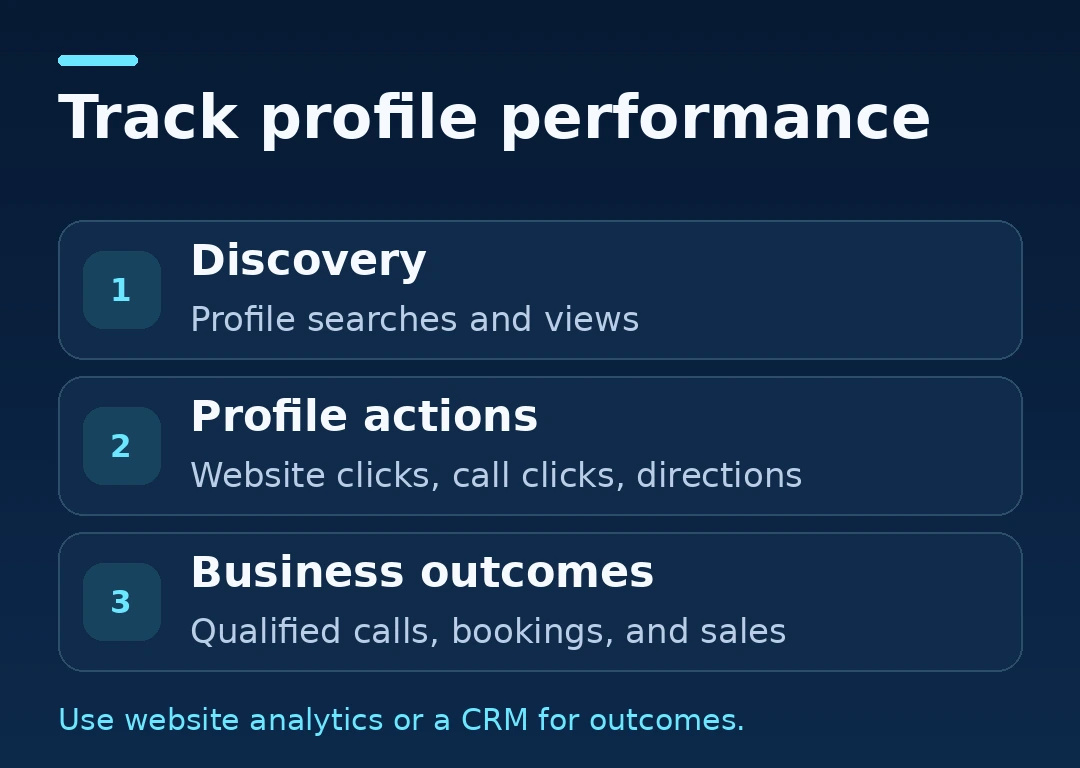
Open Performance from the verified profile and select a date range. Record a baseline and use comparable periods when reviewing changes. For seasonal businesses, compare similar weeks or months and note events that affected demand, such as a holiday, weather disruption, or a change in opening hours. Record when major listing changes and advertising campaigns went live.
Question
Where to look
What to check
How are people finding us?
Profile searches and views
Look for relevant discovery terms and changes in visibility over comparable periods.
Are customers taking the next step?
Website clicks, call-button clicks, and direction requests where available
Choose the actions that reflect how your customers typically reach you.
Did those actions produce business?
Website analytics, booking system, or CRM
Compare profile-related visits with qualified forms, appointments, or sales when attribution is available.
Google counts clicks on the profile call button as calls in the report. Your phone or CRM data can help you see how many of those clicks turned into answered calls or bookings. Likewise, use website analytics or your booking system to measure what happens after a website click. Google says the profile report can include both organic and Google Ads activity. Keep campaign changes in your notes when interpreting the results.
If you use campaign tags, apply a consistent convention to eligible profile website links and test the destination with the tags in place. For example, a business with three branches can keep the source and medium naming consistent and identify each location separately. That makes branch comparisons easier to interpret when one location changes its phone routing or appointment page.
Measure website visibility in Google’s generative Search features
Use the Search Generative AI performance report in Google Search Console to check website impressions in Google’s generative Search features, which include AI Overviews and AI Mode. Use Business Profile Performance for listing activity such as call-button clicks and direction requests. Review those reports alongside website analytics and booking data so you can see which visibility changes coincide with real inquiries.
For a manual check, test questions your customers ask about a real service, a real location, and a constraint such as weekend hours. Note the date, query, location context, and sources Google shows. Then check whether the cited page has accurate details. Treat a manual result as a point-in-time observation.
Google Business Profile vs. ChatGPT Business Hub vs. Bing Places
Platform
Where customers discover the business
What to manage
Google Business Profile
Google Search and Google Maps
Add or claim an eligible profile, verify it, maintain location and service information, and review Performance metrics.
Microsoft Bing Places for Business
Bing local results and Bing Maps
Claim or update the business listing and check that the public information reflects the correct location.
ChatGPT Business Hub
Business discovery in ChatGPT, subject to eligibility and availability
Follow the claim process for eligible businesses, keep supported details current, and review the visibility insights available in Business Hub.
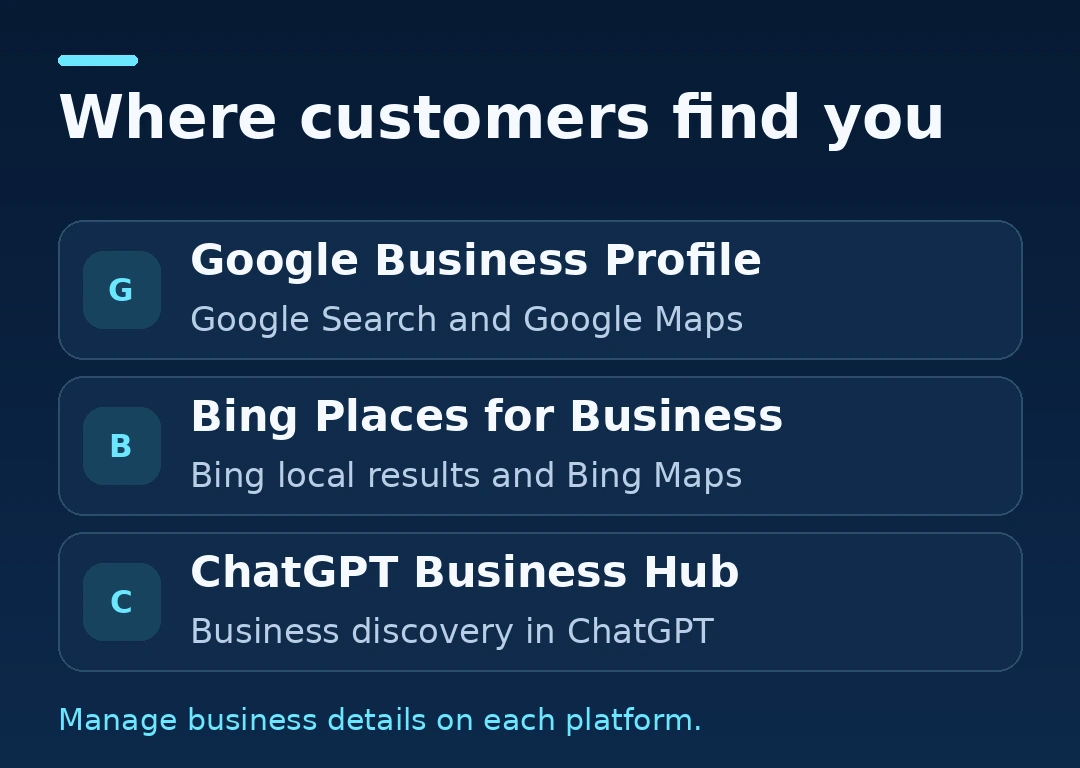
If the business relies on nearby customers, start with Google Search and Maps, then check Microsoft’s listing for the same location. Review ChatGPT Business Hub for the business types and claim options available to you. Keep the same real-world business name, contact details, and website facts across the platforms. Check each platform individually after making changes because each manages its own listing workflow.
A worked example: a plumber that serves customers at their homes
Consider a fictional plumbing company whose owner dispatches from home. An old Maps listing shows a previous business number. The owner first checks whether the listing represents the same company and whether anyone already manages it. Once the owner has the right access, they configure the profile as a service-area business, hide the address customers don’t visit, and set a service area that reflects where the crew actually takes jobs.
If Google offers video verification, the owner plans a continuous recording with an appropriate location reference, trade equipment, and evidence of authorized access to the work van. After verification, the owner checks the public listing and links it to a page explaining which jobs the crew handles, when emergency service is available, and how to call. They then track profile call-button clicks and compare those with answered calls and booked jobs. The first month reveals whether the listing is routing people to the right number and whether the callers are asking for work the crew takes. That gives the owner a concrete basis for adjusting the customer information.
Frequently asked questions
Yes. Google Business Profile verification is free through Google. Eligible businesses can add or claim a profile at no charge. An agency may charge for its own management services.
Google Business Profile verification review can take up to five business days after you complete the steps, and Google says rare cases can take longer. Preparation, delivery of a mailed code when offered, or a request for more evidence can extend the overall timeline.
Yes. An eligible service-area business can verify a Google Business Profile while keeping its home or operating address hidden from customers. Google may still require location evidence during verification. Set the profile to reflect that you travel to customers and don’t receive them at that address.
You can choose from the Google Business Profile verification methods Google offers for your listing. If only one option appears, follow the prompts for that option or use Google’s support guidance if you can’t complete it.
A Google Business Profile verification video should show your location, evidence of business operations, and evidence that you can manage the business. A storefront can show its permanent sign and access to a staff area. A service-area business can show relevant equipment and authorized access to a work vehicle or workspace.
To claim a Google Business Profile managed by someone else, request access through Google’s ownership process. The current owner generally has three days to respond. Check the request email or profile for the next step Google provides if the owner declines or doesn’t reply.
Google Business Profile verification helps Google establish that you’re authorized to represent the business. Google Maps ranking also depends on relevance, distance, and prominence, so a verified listing can appear differently for different searches and locations.
Google Business Profile verification applies to the Google listing. Use Microsoft Bing Places for Business to manage your Bing listing and ChatGPT Business Hub to follow OpenAI’s claim process if your business is eligible.
To create a Google Business Profile for a new eligible location, search Google Maps for the business name and address first. If the location has a listing, follow Google’s claim or ownership process. If the location has no listing, use Google’s add-business flow, enter the location’s own details, and complete the verification method Google offers.
No. Google Business Profile verification confirms authority to manage the listing. For a website page to be eligible as a supporting link in Google AI Mode, Google says the page must be indexed and eligible to appear with a snippet in Search. Google chooses the links it displays for each query.
We respect your privacy. We use cookies to access device data and improve site functions. Please confirm your consent. Without it, some functions may not work properly.
Functional
Always active
The technical storage or access is strictly necessary for the legitimate purpose of enabling the use of a specific service explicitly requested by the subscriber or user, or for the sole purpose of carrying out the transmission of a communication over an electronic communications network.
Preferences
The technical storage or access is necessary for the legitimate purpose of storing preferences that are not requested by the subscriber or user.
Statistics
The technical storage or access that is used exclusively for statistical purposes.The technical storage or access that is used exclusively for anonymous statistical purposes. Without a subpoena, voluntary compliance on the part of your Internet Service Provider, or additional records from a third party, information stored or retrieved for this purpose alone cannot usually be used to identify you.
Marketing
The technical storage or access is required to create user profiles to send advertising, or to track the user on a website or across several websites for similar marketing purposes.
To provide the best experiences, we use technologies like cookies to store and/or access device information. Consenting to these technologies will allow us to process data such as browsing behavior or unique IDs on this site. Not consenting or withdrawing consent, may adversely affect certain features and functions.
Functional
Always active
The technical storage or access is strictly necessary for the legitimate purpose of enabling the use of a specific service explicitly requested by the subscriber or user, or for the sole purpose of carrying out the transmission of a communication over an electronic communications network.
Preferences
The technical storage or access is necessary for the legitimate purpose of storing preferences that are not requested by the subscriber or user.
Statistics
The technical storage or access that is used exclusively for statistical purposes.The technical storage or access that is used exclusively for anonymous statistical purposes. Without a subpoena, voluntary compliance on the part of your Internet Service Provider, or additional records from a third party, information stored or retrieved for this purpose alone cannot usually be used to identify you.
Marketing
The technical storage or access is required to create user profiles to send advertising, or to track the user on a website or across several websites for similar marketing purposes.