Google Business Profile Rejected? Fix Address, Verification, and Appeal Problems
You enter the address customers already use, and Google says it can’t find it. Or your address saves, but a few days later the change shows Not approved. Those screens can look like the same rejection when your listing still sends people to the old location. The first calls for checking how Google Maps locates the address. The second calls for checking the edit decision and the review route Google offers. If a move brought back Get verified, you also have to complete the verification step shown for that profile.
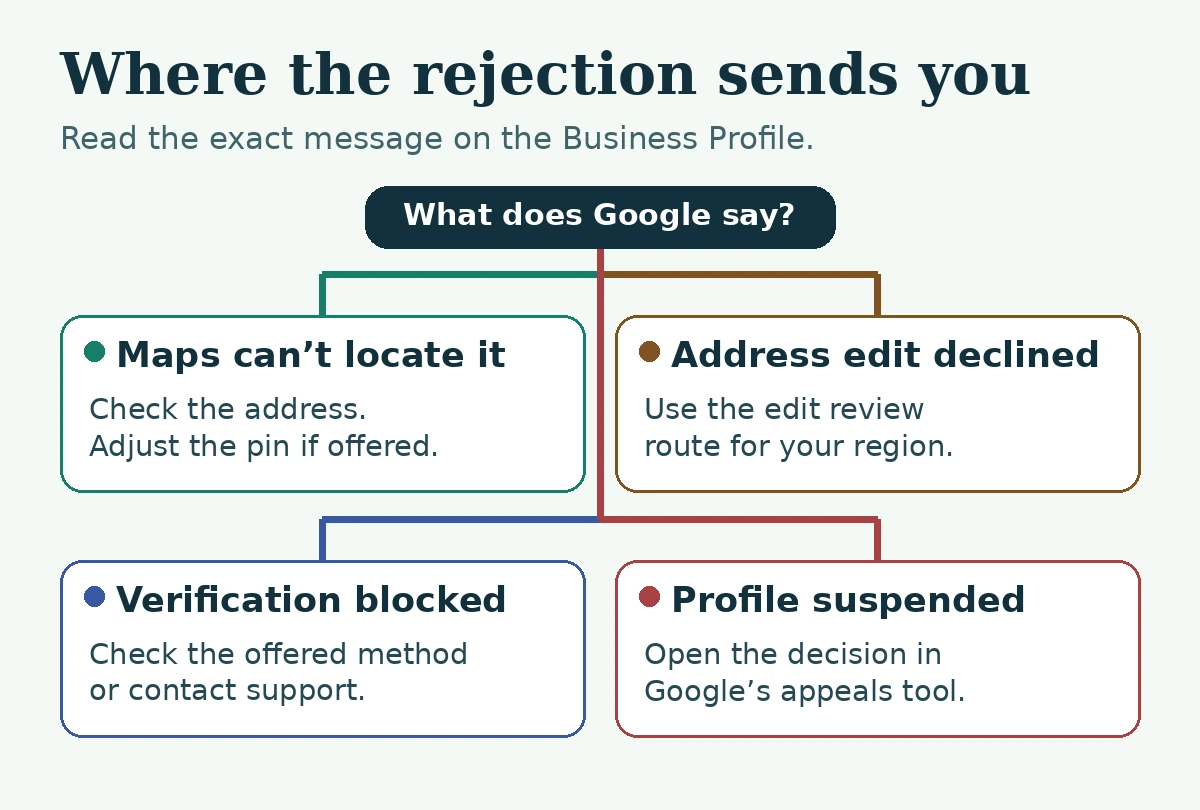
Start with the problem that is blocking you: Google can’t locate the address, Google declined a change, you can’t complete verification, or Google restricted the profile. The sections below show what to check, what evidence to prepare, and where to go next for each.
What your Google Business Profile rejection email actually tells you
Open the profile while signed in to the Google Account that manages it. Write down the exact wording, the date, and whether the profile is new or was previously verified. Check whether the dashboard offers a new attempt, shows a pending review, or explicitly identifies a policy restriction. If the email only asks for further verification, check the profile itself for Review issues, an available method, or a specific restriction. The email and dashboard can give you different pieces of the same case.
What you see
What to do next
Google can’t find your address, or the map pin lands in the wrong place
Check the precise address and use Adjust if offered to position the pin at the real location. Check eligibility separately.
Not approved next to an address change
Check the edit status and whether reverification is also requested. Use the rejected-edit route Google lists for your region.
A verification code never arrives or is rejected
Check the method, account, and latest code. For mail, check whether a new request or an edit invalidated the original code.
Review issues after video upload
Read the specific feedback. Record a new, complete video that addresses the missing evidence.
Get verified returns after you submitted evidence
Check the profile’s verification status and available methods. Use another method if Google offers one and it fits your situation.
Review pending
Check the submission date. Google says video review can take up to five business days. Keep your case history and check the status before resubmitting.
No more ways to verify or a repeating support loop
Document what happened and contact Google Business Profile support about the existing profile.
Suspended or Disabled
Identify the policy issue, correct inaccurate information, prepare evidence, and use the appeals route for eligible decisions.
Someone else manages this profile
Request access or ownership. Use the denial email’s appeal route if Google provides one.
Only an edit was rejected
Check the decision for the specific field and use Google’s edit-review route for your location.
Google Maps can’t find the address or the pin is wrong
In the profile, open Edit profile → Location and check the street number, street name, postal code, and suite if applicable. Enter the actual business location. Keep landmarks, search terms, and marketing descriptions out of the address fields. If Google still can’t find the address and offers Adjust, move the pin to the business location. After the update, check the public Maps listing and test directions separately. An accurate map pin helps locate the business. Google still applies its eligibility and verification rules.
Start with how the business operates. If you travel to customers and don’t serve them at your base, set up the eligible profile as a service-area business and keep the address off the public listing. A home can be your operating base without being a storefront. A mailbox or rented mailing address where the business doesn’t operate is ineligible as a business location. Google says a coworking office must have clear signage, receive customers there during business hours, and be staffed by your own business staff during those hours.
If the profile asks for evidence that contradicts how you operate, save the business-type screen and the request together. Explain the discrepancy through Google’s private support route. Keep your hidden address out of public forum posts.
Open the address field and check whether the edit is Pending or Not approved. Google says some edit reviews can take up to 30 days. If it is pending, track it before making repeated edits. If it is declined, prepare a short record with the former address, the current address, the move date, and evidence that connects the business name to the new operating location. Examples can include a current business license or utility bill where relevant. Check whether the profile separately asks you to verify again.
An owner in Google’s community reported repeated address-change trouble even after showing paperwork, building signage, and business cards. The report does not establish why Google refused the change. If you’re in that situation, send the exact edit status and verification message together. The person reviewing your case needs to know whether you’re disputing an address edit, trying to complete reverification, or dealing with both.
For rejected business-information edits, Google directs businesses in the UK or EEA to the appeals tool and businesses elsewhere to Contact us. If the profile itself is suspended, follow the suspension decision instead.
When a verification code or live appointment fails
Google determines which methods are available for each profile and may ask for more than one. Open the affected listing with the account that manages it and use a method Google currently displays.
Method offered
What to check before trying again
Phone call or text
Can the business receive calls or texts at the number shown? Google says an automated phone menu can prevent the code from being received. Arrange for someone who can receive the code to be available.
Email
Confirm you can access the address shown in the verification flow. Follow Google’s email instructions from the same profile.
Mail or postcard
Google says most mailed codes arrive within 14 days and expire after 30 days. Changing the business name, address, or category while waiting makes the mailed code unusable. Requesting a new code invalidates the one already in transit.
Live video call
Use the live option if Google offers it. Be at the actual business location, with a phone and access to the location, operating evidence, and business-only assets the representative may ask to see.
Keep verification codes private and enter them in the Google Business Profile workflow. If a method can’t be completed and Google offers no other option, record the method and what failed. For example, note that the call goes to an automated menu or that the only code available expired after an address correction.
When an old listing or another owner blocks access
Search Maps for the business name, phone number, and old and new addresses. If the existing profile represents the same business and someone else controls it, request access or ownership through Google’s workflow. Google gives the current owner three days to respond. If they deny the request, follow the options in the rejection email. If two records represent the same business, use Google’s duplicate-profile process before deciding what to do with either listing. This is particularly important after a move or agency handover, when an old record may still have the correct reviews and ownership history.
If Google rejects a verification video, change what it proves
Google wants evidence of where the business operates, that it exists, and that you’re authorized to manage it. Record and upload through the Business Profile verification flow on a mobile device. Google requires a continuous, unedited video of at least 30 seconds. Plan the route before you press record, and review the footage before uploading. Use these checks to plan a new recording.
Google couldn’t confirm your location
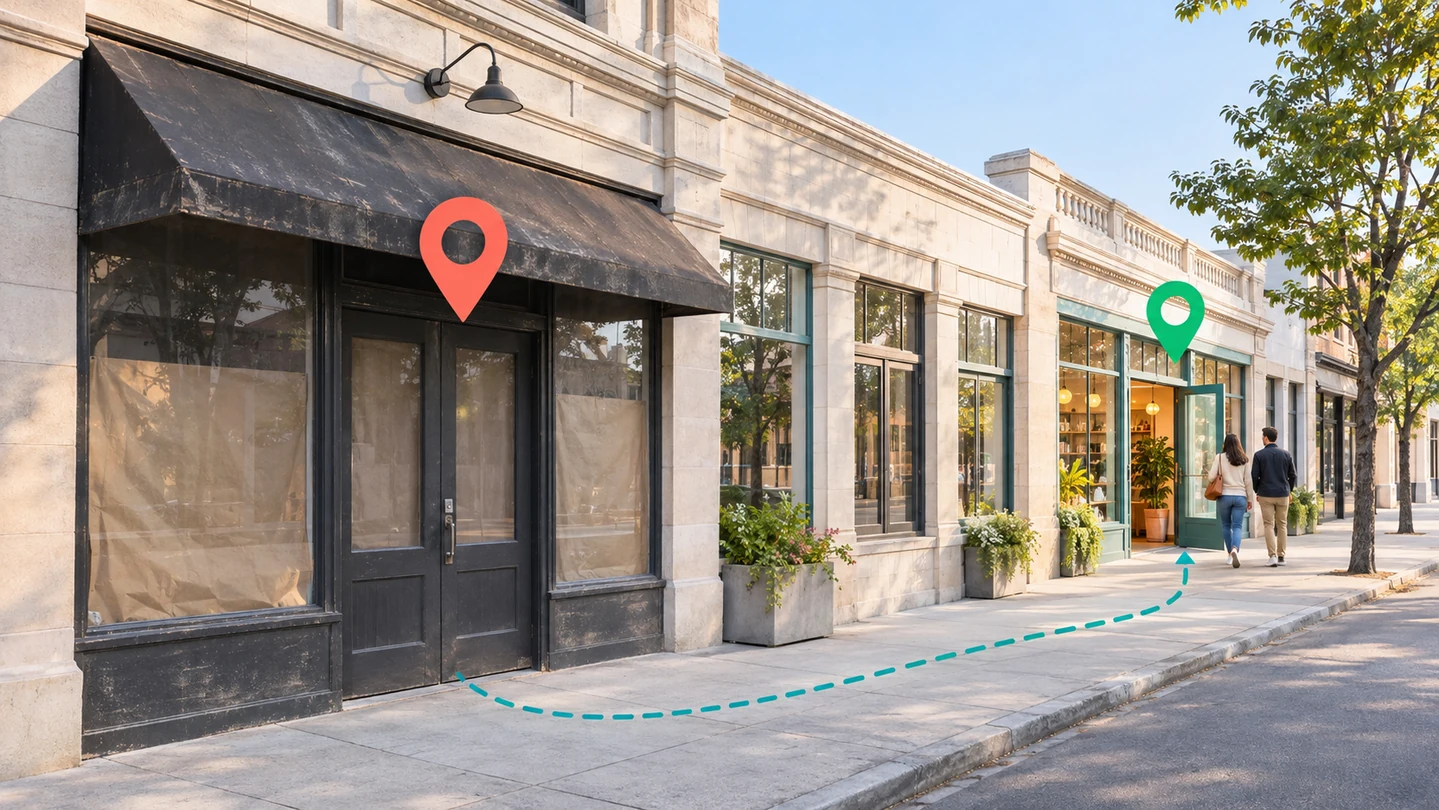
Start outside with a readable street sign, building number, or recognizable nearby business. Walk continuously from that location marker to the entrance or operating base. An isolated close-up of your front door may show an address number without showing how it connects to the surrounding area.
For a home-based service-area business, Google gives nearby neighborhood signs or landmarks as examples of location evidence. Plan the shot so the reviewer can understand the area and how it connects to where you operate. Keep your home address hidden on the public profile if customers don’t visit it. Location evidence submitted privately through verification serves a different purpose from the address customers see in Maps.
Google couldn’t confirm your business name or operations
For a storefront, hold the camera steady on permanent signage that shows the name used on your profile. Continue into the customer-facing area and show what the business does. If the real-world name and the profile differ, check why. A recent rebrand, an added city name, or a marketing phrase in the profile can create a discrepancy that clearer footage alone won’t solve.
For a service-area business, show tools, equipment, a workspace, or legitimate branded assets that explain the work. A carpet cleaner could show an extractor and stocked vehicle. A mobile bike mechanic could show repair stands, tools, and the parts used on customer calls. The footage should make the operation recognizable to someone seeing it for the first time.
Google couldn’t confirm your authority to manage the business
Show an action that demonstrates your authority. A storefront owner might unlock a staff-only area. A mobile operator might unlock a work van or secured equipment storage. If you choose to show an appropriate document as part of Google’s verification flow, keep sensitive details such as ID numbers, tax numbers, banking details, and customer information out of view. Plan the shots so other people’s faces stay out of the recording.
Video upload failure: Check whether Google received it
Treat a failed upload as a submission problem. Check whether Google recorded a successful submission or showed a pending review. If the upload itself failed, Google says to try uploading again. Follow the recording flow from the device and account managing the listing, and confirm that required camera, microphone, and location permissions are available if prompted.
When Google rejects a submitted video, open Review issues and address the feedback. Include the useful evidence from the previous recording as well as what was missing. Save the submission date and the resulting status so you can describe what happened accurately if you need support.
If Google says “No more ways to verify,” send a case Google can review
One home-based landscaper reported that recorded videos and a live call both failed. The business had no storefront, and the owner said the support flow sent them back to the same verification screen. Another business reported that Google’s status tool recognized its service-area setup after an address change, while the verification flow still asked for storefront photos.
If that happens to you, capture both screens. A screenshot showing Service-area business and another asking for storefront evidence give support a concrete contradiction to examine. If the only thing you can show is the rejection email and the message that no methods remain, submit those together with the dates of your attempts. Ask Google to identify the next available step for that profile.
Build a short case record before contacting support
Open the verification status tool using the account that manages the affected profile.
Record the profile type, exact status, verification options shown, and the date of the last attempt.
List what you already tried. For an address change, note the old and current location privately. For a code, describe what failed without sharing the code. For a video, summarize what the footage showed.
Note relevant changes, such as a move or rebrand. Include the existing support case reference when contacting Google through a private channel.
Ask one specific question. For example, ask which evidence is missing for the configured business type, or how to proceed when the dashboard offers no method.
If you already have an active case and can reply, add the new information there. Keep a private copy of the rejection and status screens. In the public community, describe the issue without posting private documents, a hidden home address, codes, or account credentials.
Copy this Google Business Profile support message
I manage the Google Business Profile for [business name]. It is a [storefront, service-area, or hybrid] business. On [date], I [submitted an address change or attempted verification by the offered method]. The exact message is “[paste the status shown].” The dashboard now shows [available option, pending or declined edit, or no options]. I can provide [relevant evidence] privately. Please confirm whether the next step is address-edit review, reverification, or another process for this existing profile.
Replace the bracketed fields and select your actual business type before sending. A specific account of what happened gives support more to work with than a request to approve the listing or turn on a particular method.
These examples come from public reports. The community cases reflect what their posters said. The reinstatement case comes from the consultant who handled it. They show useful patterns without establishing why Google made a particular decision or how long a future case will take.
Case 1. A service-area business was asked for storefront evidence
An agency reported three rejected videos for a Texas land-clearing business. The agency described it as a service-area business and said the feedback pointed to storefront evidence. Recorded video was the only method the agency reported seeing. The source reviewed did not establish a resolution.
What to do in a similar case: Confirm how the business actually serves customers and how the profile is configured. Capture the rejection message and note the evidence that the video already showed. If the storefront prompt persists for a correctly configured service-area business, ask support to review the mismatch. A temporary sign or a public address where customers can’t visit would change the facts of the listing. Google Business Profile Community report
Case 2. Verification was reported successful after support correspondence
In another community thread, a poster said their office’s first video wasn’t accepted. After corresponding with support by email, the poster reported that the office was verified and that its new address appeared correctly. The public report doesn’t identify the precise evidence or decision that changed the outcome.
What to do in a similar case: Keep the support thread and provide a short account of the move, the result of the previous attempt, and the detail that needs review. After approval, open Google Search and Maps to confirm the displayed location. The dashboard’s verification status and the customer-facing address are both worth checking. Google Business Profile Community report
Case 3. A move left conflicting records before a suspension appeal
RZ Web Media reported that Metamorphosis Media’s profile was suspended after a move from New Hampshire to Florida. The consultant identified an address issue, an older profile in the previous state, and conflicting records. The owner submitted the appeal from his own account. The consultant reported reinstatement in October 2026 after the final submission.
What to do in a similar case: Compare the current profile with the prior listing, website, and relevant records. Resolve inaccurate or duplicate information using the appropriate Google process. Prepare evidence for the actual policy decision. This case illustrates what an audit can uncover after a move. The explanation and outcome are the consultant’s account. RZ Web Media’s published case study
Google Business Profile appeals tool: Submit, track, or request additional review
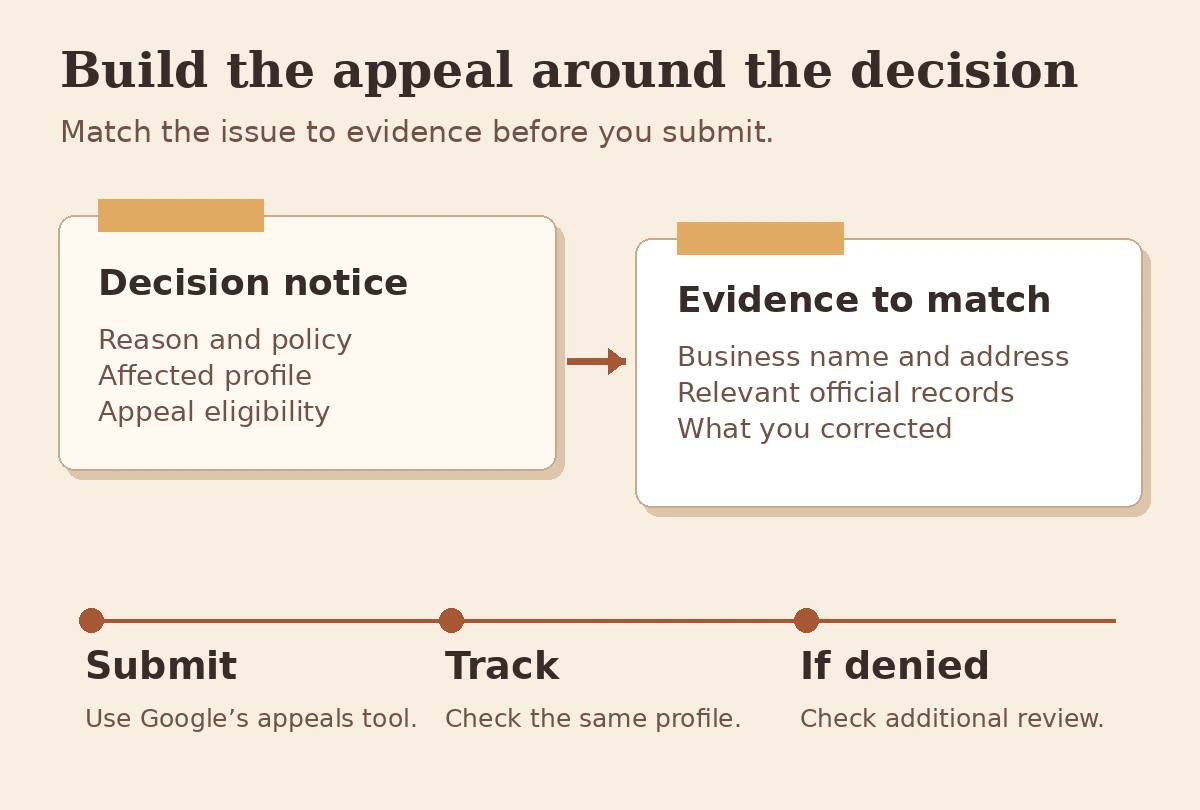
A suspension or disabled status calls for a policy review. Open the decision, read the reason and linked policy, and check that the profile describes the business as it operates. Pay particular attention to business name, location eligibility, service-area settings, duplicates, and what changed before the restriction. Correct information you can substantiate.
Prepare documents that support your case. Google lists business registration, licensing, tax certificates, and certain utility bills as examples. Check that the business name and address match the profile you’re appealing. If a document uses a legal name and the listing uses a trading name, be ready to explain the relationship and provide relevant records if the official process allows it. Submit documents only through the official private channel.
Find the eligible decision. Open the Google Business Profile appeals tool using the account associated with the affected profile. Select the profile and check the decision date, reason, linked policy, and whether Google offers an appeal. An empty tool after a video rejection usually means you should check the verification route first. For a rejected business-information edit, Google directs UK and EEA businesses to the appeals tool and businesses elsewhere to its contact route.
Prepare the evidence before you start. Match each document to a claim in your explanation. For instance, a business license may support the business name while a current utility bill may support the operating address. In flows that provide a separate linked evidence form, follow the deadline shown. Google’s general guidance describes a 60-minute deadline for submitting evidence after the appeal in that flow. If an account restriction affects multiple profiles, Google directs you to address the account restriction first.
Check your Google Business appeal status. Return to the same tool and select the same profile. Google lists statuses including Submitted, Approved, and Not Approved. Save the decision email and check the tool before sending anything else.
If the Google Business Profile appeals tool shows a rejection, use the correct follow-up. For a denied reinstatement request, Google may offer an additional review. If you are looking for a Google Business Profile reinstatement request form, start in the appeals tool for the initial appeal. Use Google’s additional review form for a denied appeal when your reinstatement request has already been denied and that route applies. Provide relevant evidence you did not submit the first time.
Keep the existing profile while the appeal is being handled. For a relocation case, a concise appeal might identify the old and current location, explain what was corrected, and name the attached record that supports each correction.
When it’s worth paying for a listing app or consultant
Start with the least expensive option that can solve the issue you’ve identified. When Google gives clear video feedback, the verification tool and a better evidence plan may be all you need. If a business move left conflicting records, a listing management app can help find and maintain directory information. If a suspension notice is broad and the profile matters to daily bookings, a specialist can help audit the case and prepare an appeal.
What to ask a Google Business Profile consultant before paying
Ask the consultant to identify your actual case type. Ask what they’ll audit, what evidence they’ll need, who will submit it, what the fee covers, and what happens if the first attempt fails. If you need help with verification rather than reinstatement, confirm that the provider handles that specific service. Ask for relevant examples and a written scope.
Keep the business as owner of its profile. Use appropriate manager access if a provider needs it, and keep passwords and verification codes private. Avoid providers that guarantee approval, claim to control Google’s queue, propose false evidence, or insist on creating a replacement profile to get around a restriction.
Once Google approves the profile, check what customers see
Open the listing in Search and Maps. Check the business name, public address or service area, hours, phone number, and website link. Call the displayed number or test the booking link from a phone. If you run several locations, verify the destination page is for the correct branch. When the profile and website agree, use Business Profile Performance and website analytics to measure calls, visits, and inquiries as applicable.
If the listing now works but the linked website still shows old details, start by fixing that page.
If Google rejected a post or offer, check the content decision
One business owner reported that both posts and offers were rejected, the email said posting was turned off, and the appeals tool showed no item to appeal. If you see this pattern, first check the status of the affected post and the policy indicator next to Not approved. If the email describes a posting restriction and the appropriate tool shows no eligible decision, contact Google with the exact email wording, affected content, and a screenshot of that tool state. Keep this case separate from profile verification or reinstatement unless the profile itself shows a restriction.
Does Google publish a Business Profile verification rejection rate?
The Google sources reviewed do not publish a rejection rate for legitimate Business Profile verification attempts. Google’s published Maps enforcement totals count action on fake profiles, edits, and accounts. A verification rejection rate would require both the number of legitimate submissions reviewed and the number rejected, with a clear distinction between first attempts and repeat submissions.
Google Maps measure for 2025
Google’s reported figure
Fake Business Profiles removed
More than 13 million
Inaccurate or unverified edits blocked
79 million
Policy-violating accounts with posting restrictions
More than 782,000
The figures describe three different types of enforcement. None estimates the chance that Google rejects a legitimate business’s verification video or appeal. Google separately says a video review can take up to five business days. That is a review window, with no implication about the outcome.
What a sample of suspension complaints can tell you
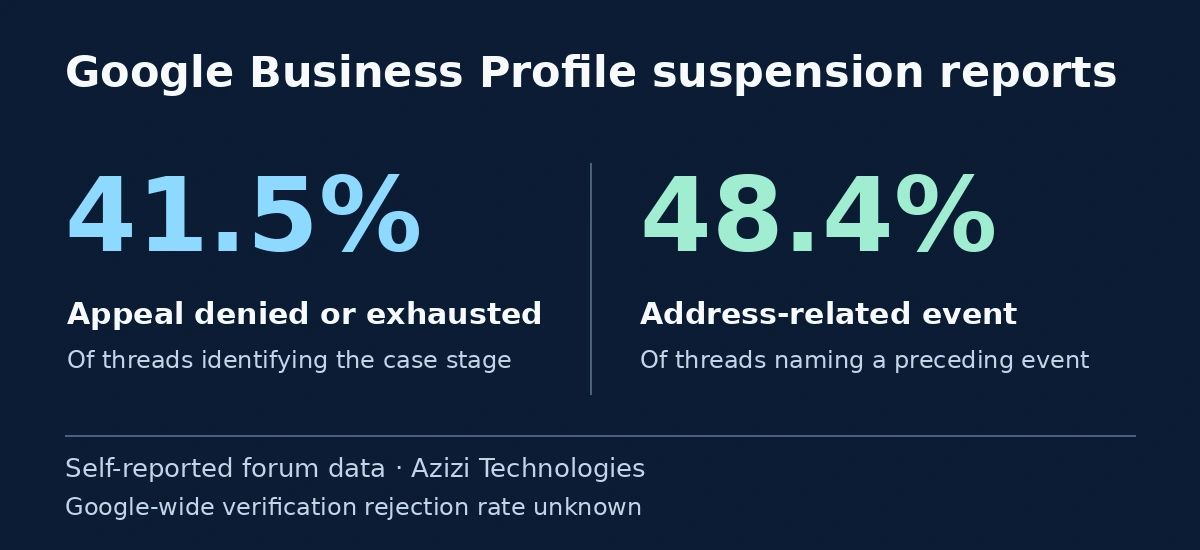
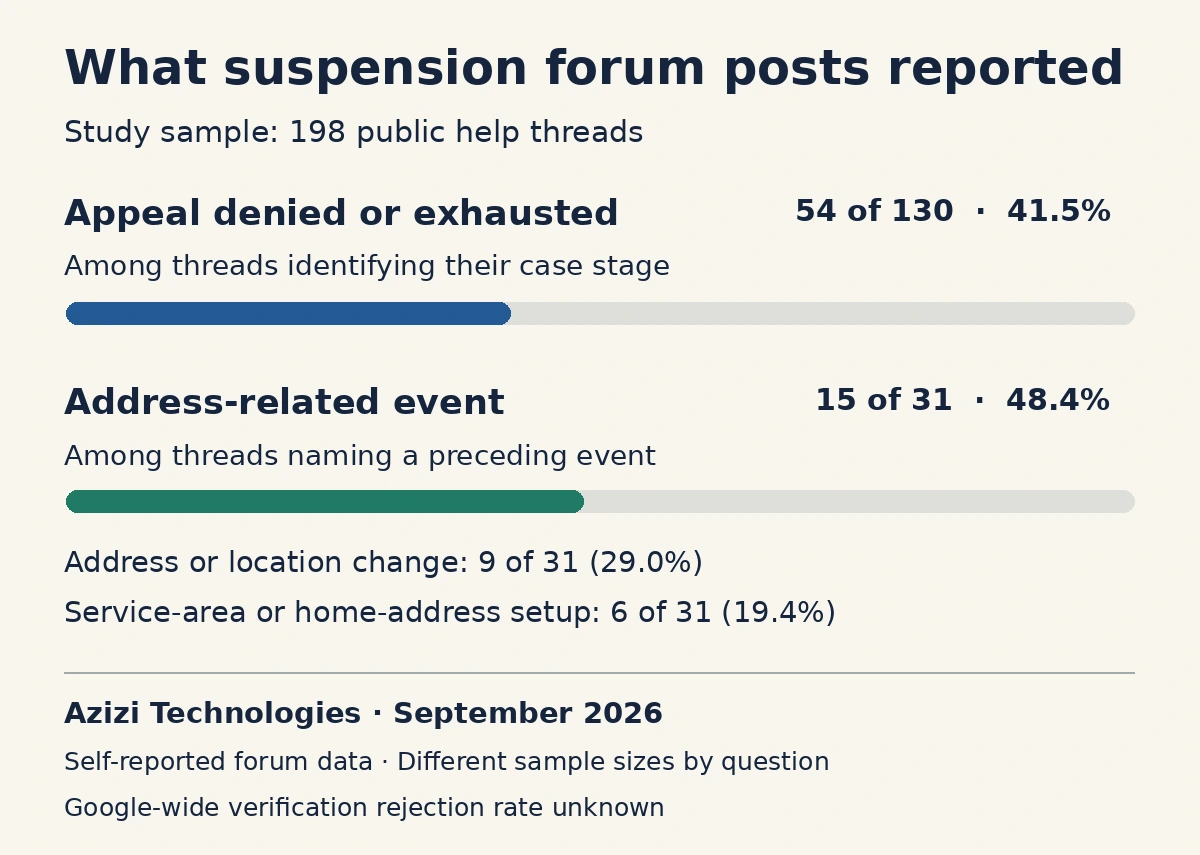
Azizi Technologies classified 198 unique suspension, disabling, or visibility-block threads from the Google Business Profile Help Community in September 2026. Of the 31 threads that named a preceding event, 15 (48.4%) mentioned an address-related change or setup. Nine mentioned an address or location change and six mentioned a service-area or home-address setup. Among 130 threads that identified the stage of the case, 54 (41.5%) reported a denied appeal or no appeals left.
These are self-reported forum cases. The researchers coded the thread titles and openings, and the denominators differ because owners did not always give both details. The findings cannot establish that changing an address caused suspension, the overall appeal denial rate, or the verification rejection rate. Google’s video guidance separately gives examples of specific rejection feedback: an unclear business name, missing surroundings, or insufficient proof of authority. It does not give a frequency for any of these issues.
Google Business Profile may be unable to locate an address, decline an address edit, or require verification after a move. Check which message appears. If Google can’t find an accurate, eligible location, use Adjust to place the map pin when offered. If the edit says Not approved, use Google’s rejected-edit review route for your region.
A Google Business Profile mailed verification code expires after 30 days. Google says a new code request invalidates the code already in transit, and editing the name, address, or category while waiting makes the mailed code unusable. Check the current profile and follow the options it offers.
A Google Business Profile verification video can be rejected when Google cannot confirm location, business operations, or authority to manage the listing. Open Review issues on the affected profile, identify the feedback, and include both the missing evidence and the useful evidence from the original recording in the next submission.
If Google Business Profile says no more ways to verify, check the verification status from the account managing the listing and contact Google support about that existing profile. Include the exact message, your previous method, when it failed, and what options the dashboard now offers.
A Google Business Profile email asking for further account verification tells you Google needs another verification step. Open the affected profile to look for specific feedback under Review issues or another method. If the Google Business Profile dashboard offers no method, keep the email and a screenshot of the dashboard for your support case.
An eligible home-based service-area business can complete Google Business Profile verification while keeping its address hidden from the public if customers do not visit it. Google may still require location evidence for the private verification process, alongside evidence of operations and management access.
Google says Google Business Profile video verification review can take up to five business days after upload. If Google rejects the video and you upload a new one, the new recording needs its own review.
For a rejected Google Business Profile verification video, start with Review issues and the verification steps available in your dashboard. Use the Google Business Profile appeals route for an eligible restriction or suspension, and follow the separate ownership or edit-review process when that is the actual decision.
Google decides whether to reinstate a Google Business Profile. A consultant can identify possible policy conflicts, help assemble evidence, and guide the business through an appeal. Ask for a defined scope and keep control of the account and listing.
If your Google Business Profile reinstatement appeal is denied, check Google’s instructions for an additional review. If the option is available, address the decision and provide relevant evidence you did not include in the original appeal.
Google instructs businesses to use the appeals route for the suspended Google Business Profile and to avoid creating another profile for the same business. Correct the underlying issue and use the existing listing when seeking reinstatement.
We respect your privacy. We use cookies to access device data and improve site functions. Please confirm your consent. Without it, some functions may not work properly.
Functional
Always active
The technical storage or access is strictly necessary for the legitimate purpose of enabling the use of a specific service explicitly requested by the subscriber or user, or for the sole purpose of carrying out the transmission of a communication over an electronic communications network.
Preferences
The technical storage or access is necessary for the legitimate purpose of storing preferences that are not requested by the subscriber or user.
Statistics
The technical storage or access that is used exclusively for statistical purposes.The technical storage or access that is used exclusively for anonymous statistical purposes. Without a subpoena, voluntary compliance on the part of your Internet Service Provider, or additional records from a third party, information stored or retrieved for this purpose alone cannot usually be used to identify you.
Marketing
The technical storage or access is required to create user profiles to send advertising, or to track the user on a website or across several websites for similar marketing purposes.
To provide the best experiences, we use technologies like cookies to store and/or access device information. Consenting to these technologies will allow us to process data such as browsing behavior or unique IDs on this site. Not consenting or withdrawing consent, may adversely affect certain features and functions.
Functional
Always active
The technical storage or access is strictly necessary for the legitimate purpose of enabling the use of a specific service explicitly requested by the subscriber or user, or for the sole purpose of carrying out the transmission of a communication over an electronic communications network.
Preferences
The technical storage or access is necessary for the legitimate purpose of storing preferences that are not requested by the subscriber or user.
Statistics
The technical storage or access that is used exclusively for statistical purposes.The technical storage or access that is used exclusively for anonymous statistical purposes. Without a subpoena, voluntary compliance on the part of your Internet Service Provider, or additional records from a third party, information stored or retrieved for this purpose alone cannot usually be used to identify you.
Marketing
The technical storage or access is required to create user profiles to send advertising, or to track the user on a website or across several websites for similar marketing purposes.